LILYGO T-Deck Plus 868MHz Meshcore Firmware
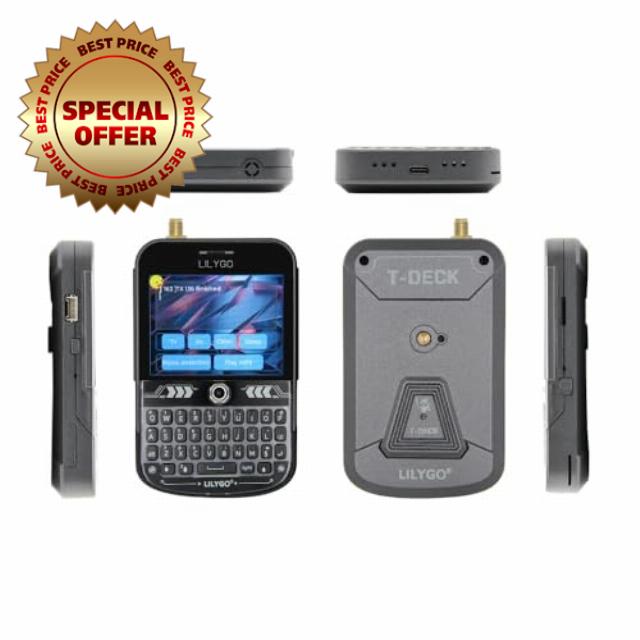
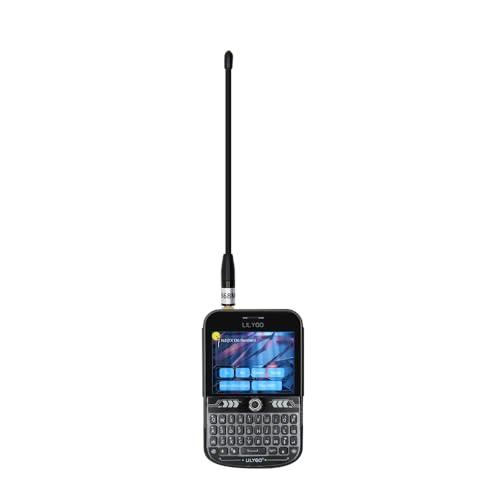
LILYGO T-Deck Plus 868MHz Meshcore Firmware Version 2.8 Inch Display TTGO Development Board (External Antenna)
- Firmware: Meshcore firmware
- WIKI: wiki.lilygo.cc/
- YouTube: youtu.be/Y05rDxq5ICs
- 【Github】github.com/Xinyuan-LilyGO/T-Deck
- Product service: If you have any questions or suggestions about the product, please feel free to contact us. We will answer your question as soon as possible
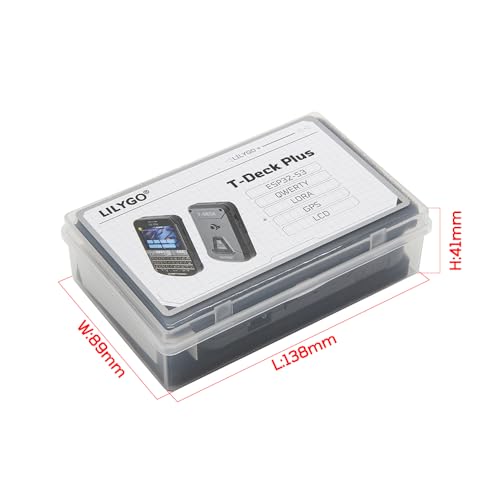
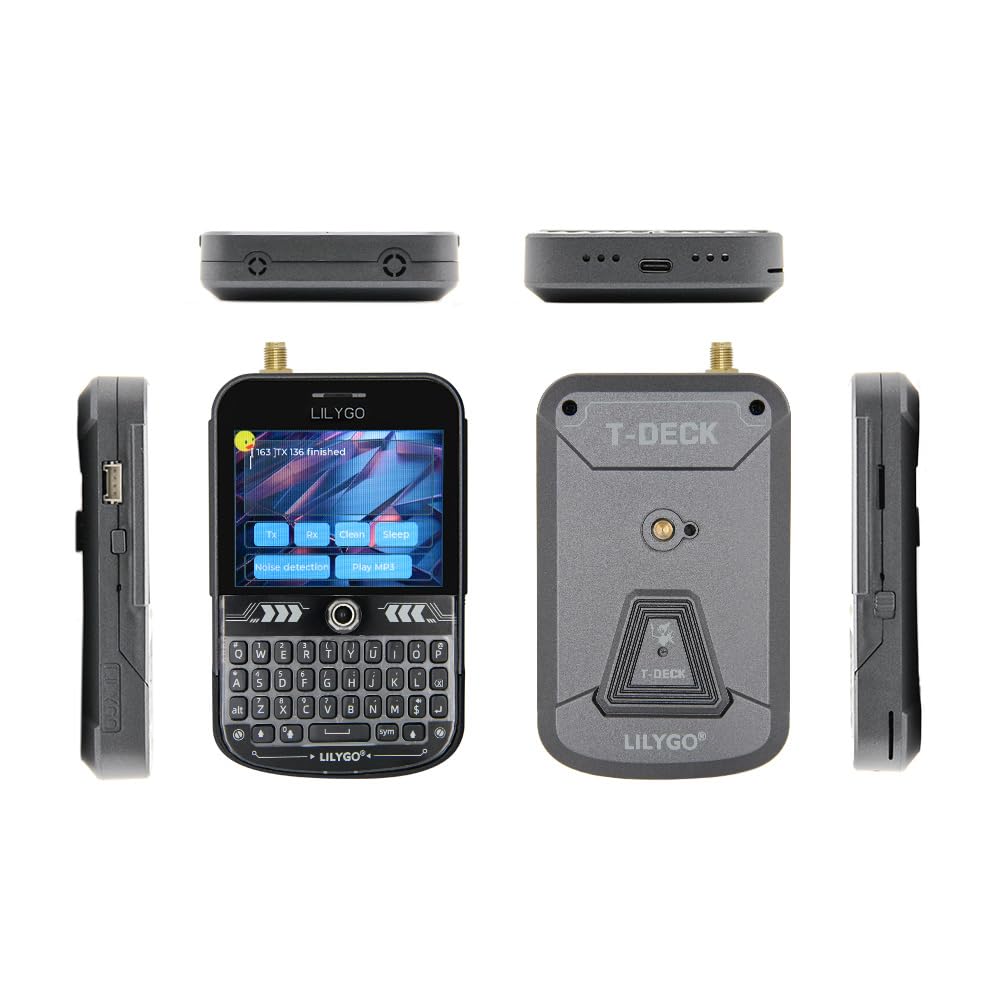
Product Display
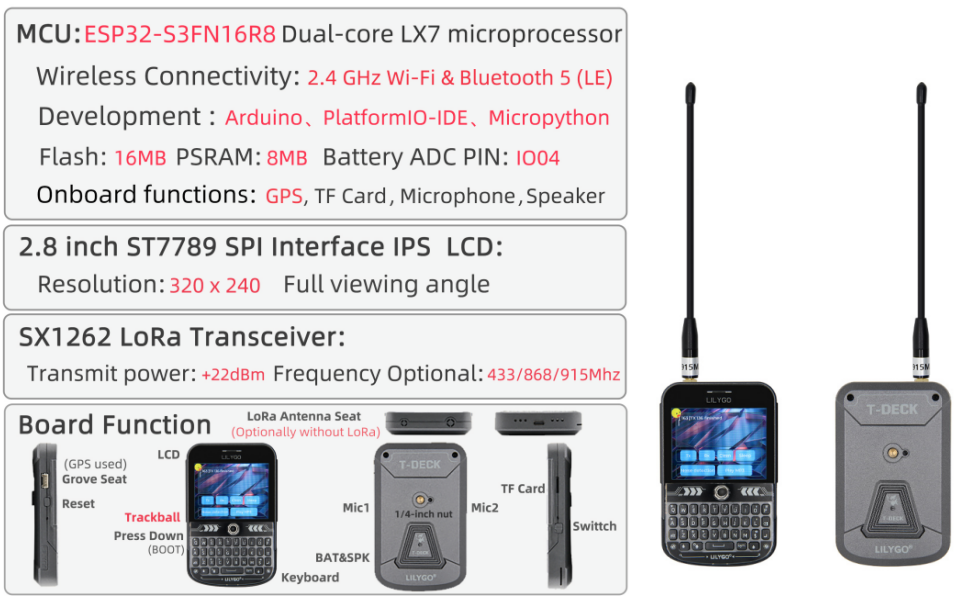
Product Parameters
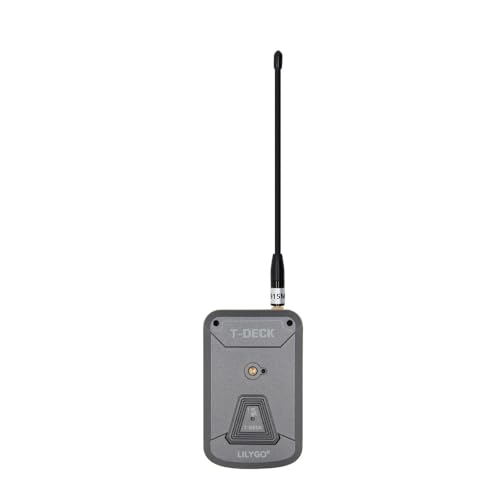
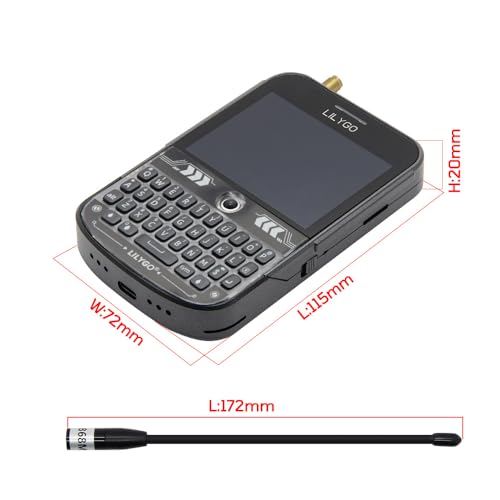
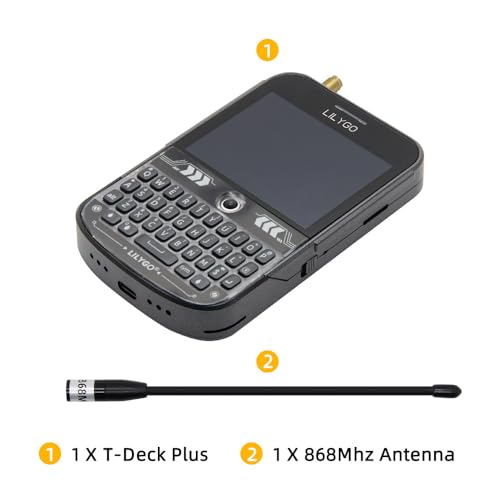
- This version adds the antenna external function.
- Github: github.com/Xinyuan-LilyGO/T-Deck
- WIKI:wiki.lilygo.cc/
- NOTE: The device does not have a built-in battery meter, so the battery percentage display is not accurate. This is not a product issue. The new firmware version will optimize the battery percentage program settings.
- Regarding the Manual : Our product is currently classified as open-source hardware.Multiple community firmware adaptations are available, with various firmware versions undergoing continuous updates.Traditional paper manuals often become outdated and may lead to misinformation. Therefore,we have standardized our documentation across GitHub, Wiki versions, YouTube, online manuals, and video tutorials.
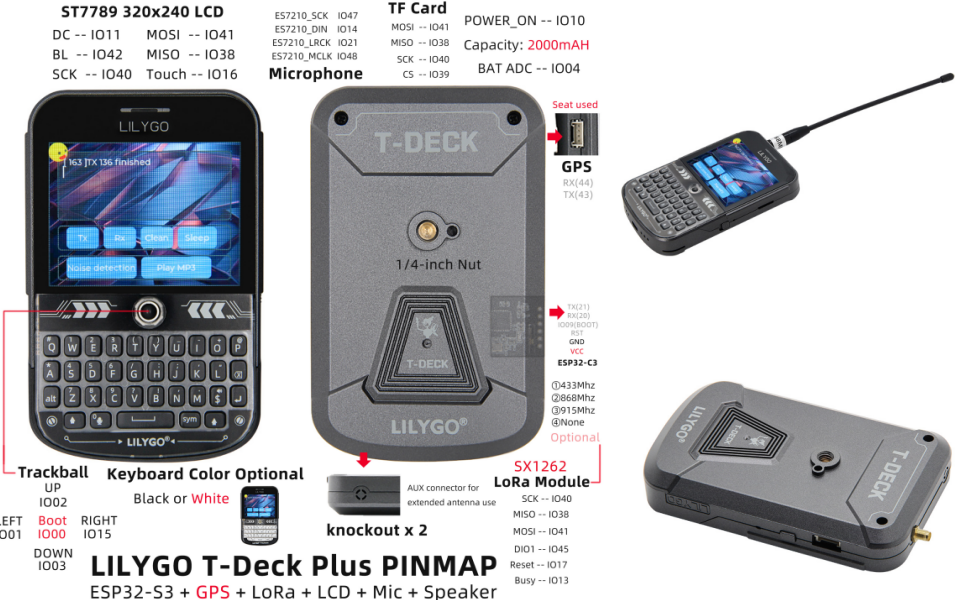
PIN MAP
Tips:
- If a microphone is used, the GPIOO button cannot be used
- If the sketch cannot be uploaded, then you need to press down the middle of the trackball, and then insert the USB, this means the chip is in the download mode, and then click to upload the sketch.
- T-Keyboard the programming and burning interface of ESP32C3 is located at the 6Pin header on the side of the RST button, and the order starts from the top of the RST button, which are 3V3, GND, RST, BOOT, RX, TX, You need to connect USB TO TTL externally to burn the keyboard firmware. For TTL without automatic download circuit, before powering on, short-circuit the BOOT Pin and GND, and then power on. At this time, T-Keyboard will enter the download mode. After the burning is completed, you need to disconnect GND and BOOT before running the program.
- T-Deck can't upload any sketch,Please enter the upload mode manually.
- Connect the board via the USB cable
- Press and hold the BOOT button , While still pressing the BOOT(On the trackball above the keyboard, press down) button
- Press RST button
- Release the RST button
- Release the BOOT button
- Upload sketch
| SKU: | B0G387GKLL |
| Brand: | LILYGO |
| Model: | Externe Antenne |
| Manufacture: | LILYGO |
Product Description
Tips:
- If a microphone is used, the GPIOO button cannot be used
- If the sketch cannot be uploaded, then you need to press down the middle of the trackball, and then insert the USB, this means the chip is in the download mode, and then click to upload the sketch.
- T-Keyboard the programming and burning interface of ESP32C3 is located at the 6Pin header on the side of the RST button, and the order starts from the top of the RST button, which are 3V3, GND, RST, BOOT, RX, TX, You need to connect USB TO TTL externally to burn the keyboard firmware. For TTL without automatic download circuit, before powering on, short-circuit the BOOT Pin and GND, and then power on. At this time, T-Keyboard will enter the download mode. After the burning is completed, you need to disconnect GND and BOOT before running the program.
- T-Deck can't upload any sketch,Please enter the upload mode manually.
- Connect the board via the USB cable
- Press and hold the BOOT button , While still pressing the BOOT(On the trackball above the keyboard, press down) button
- Press RST button
- Release the RST button
- Release the BOOT button
- Upload sketch